01 · Overview
State the goal in one sentence; the Agent breaks it into tasks
The Creation Agent is KiiKii's conversational creation entry point. Describe your idea, script, or visual requirements clearly, and it understands the intent, breaks it into multiple tasks, selects the right skills and models, then produces images, video, audio, or copy in sequence.
Quick answer
- Best for complete content sets: cover + supporting images, script + storyboard + final cut, talking head + voiceover.
- The composer supports @ asset references, skills, and prompt optimization.
- Model, aspect ratio, and resolution can be left to the Agent or set manually.
- Generation shows thinking steps and elapsed time; failures report diagnostics and can be retried.
- Results can be downloaded, or you can copy the prompt, copy the link, or reference the result to keep creating.
What it solves
- Can't write prompts: describe requirements in everyday language and the Agent fills in the shot, style, and parameters.
- One piece of content needs many assets: produce covers, supporting images, and video in one conversation without switching tools.
- Revisions are expensive: just say “change the background to a rainy night” or “make the subtitles bigger” and it keeps editing from the current version.
- Assets are scattered: uploaded people, products, and audio can be referenced repeatedly within the same round.
02 · Scenarios
Who it is for and what it can do
Whenever you need a set of content rather than a single image, the Agent is the better fit.
- Creators and knowledge bloggers: produce a topic cover, in-article images, and a talking-head video in one go.
- E-commerce and brands: product image series, multi-scene presentations, and short video assets for the same item.
- Fiction and narrative content: turn a passage of text into character designs, storyboard frames, and a multi-shot short film.
- Local services and stores: event posters, store-visit images, and walk-in guidance videos.
- Corporate marketing and training: product overview images, demo videos, and multilingual assets.
Three typical workflows
The first is “image first, then video”: have the Agent produce the key frames, confirm the style, then generate video. The second is “script first, then storyboard”: have it write the script, split it into shots, then generate shot by shot. The third is “asset reuse”: upload character and product images and reference them with @ to build series content for different scenes.
If you only need one image or one 5-second clip, the matching studio is faster; the Agent's value lies in continuous tasks and context memory.
03 · Layout
Interface layout and entry points
Open Agent (创作 Agent) in the top navigation to reach the creation page. The left side holds creation history and navigation, the center holds the conversation and multi-round generation records, and the right side previews this round's results.
- New Conversation (新建对话): start a separate topic so contexts do not interfere.
- This Round's Creation Details (本轮创作详情): see which tasks were split out and which models and parameters were used.
- Asset Panel (资产面板): the images, video, audio, and copy produced this round, ready to preview and download.
- Copy Input (复制输入内容): reuse the previous prompt and adapt it to a new topic.
04 · Composer
Composer and parameters
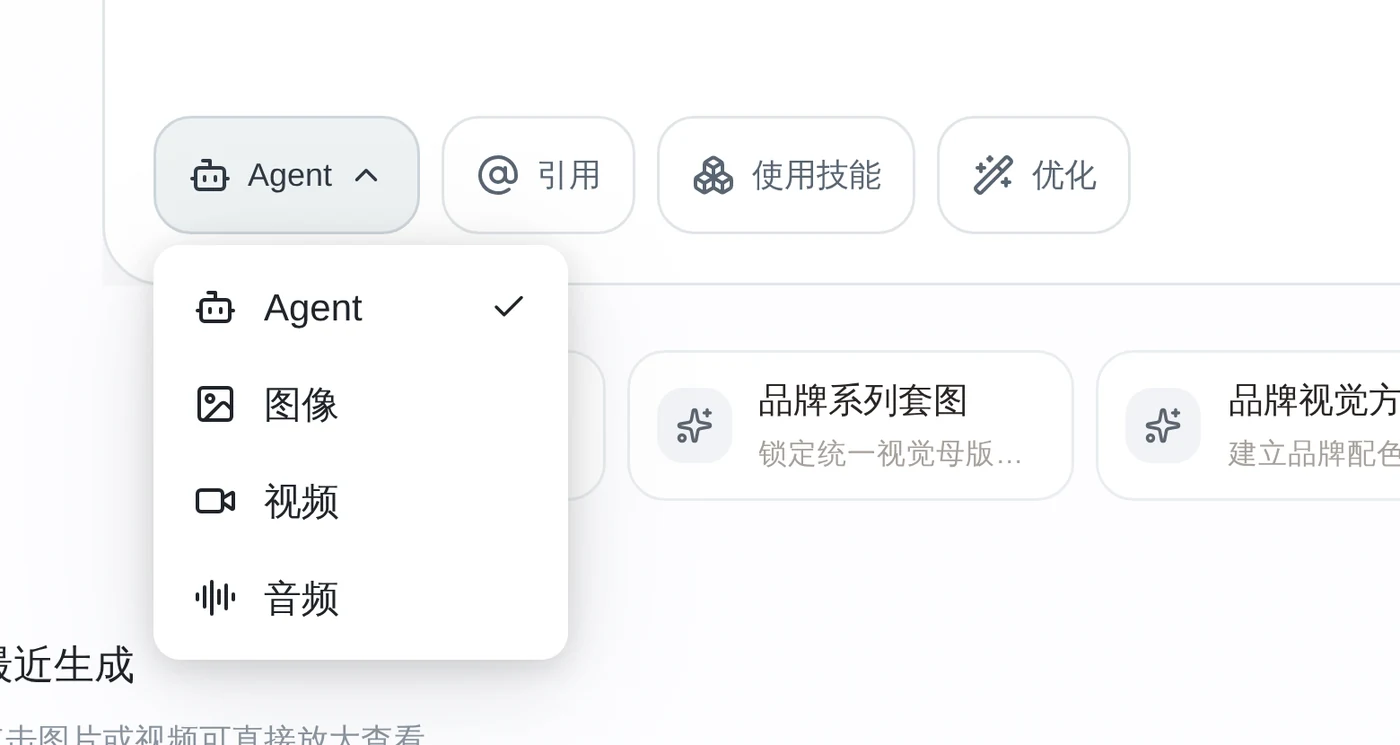
The four buttons above the composer are the Agent's core actions; below are the creation type and generation parameters.
Agent
Enter Agent mode: the Agent plans its own steps instead of calling a single model once.
@ Reference
Reference an uploaded image, video, or audio asset and state the role it plays in the request.
Skills
Assign a skill manually, such as e-commerce image generation or natural beauty retouching; leave it empty and the Agent matches one automatically.
Optimize
Rewrite a casual request into a fuller prompt, adding style, composition, lighting, and camera.
Three essentials for writing a request
- State the purpose: WeChat article cover, e-commerce hero image, 9:16 short video—the purpose determines aspect ratio and composition.
- State the subject: who, where, doing what; use @ to designate assets when needed.
- State the style: realistic or illustrated, warm or cool light, camera distance—more effective than “premium feel”.
05 · References
Reference assets and @ references
Uploaded assets do not take effect automatically—you must name them with @ in the request and explain what they are for.
- Character assets: keep the same character look, ideal for series content.
- Product assets: keep product appearance and packaging details so the AI does not alter logos or text.
- Audio assets: use for lip sync, voiceover, or music; state the language and tone.
- Video assets: use as a reference for camera movement, pacing, or visual style.
Example request: “Use the character from @Image 1 and the product from @Image 2 to generate a 9:16 e-commerce hero image, change the background to a light wood desk, and leave the price area clear on the right.”
06 · Skills
Using skills: lock in proven workflows
A skill is a packaged creation workflow that includes the prompt structure, model selection, and parameters. Once selected, the Agent follows that workflow, so results are more consistent.
When to use a skill
- You produce the same type of content repeatedly and want a consistent style every time.
- There are clear industry requirements, such as e-commerce hero images that need whitespace and a defined selling-point area.
- Your own prompts always fall a little short and you want to start from a proven template, then fine-tune.
More skills is not better. Choose one primary skill at a time, then add differences in text so multiple skills do not override each other.
07 · Runs
Thinking process and run status
Complex tasks think before they execute. The interface shows completed thinking, current generation, and elapsed time, so you can tell whether a task is stuck.
- Generating: shows the current step and elapsed time; for long tasks you can leave the page and still see progress when you return.
- Task paused: usually means the upstream result awaits confirmation; the task pauses to avoid duplicate generation and charges, and continues after confirmation.
- Task failed: shows the original diagnostics and can be retried directly; results that already succeeded are not lost.
- Stop generation: stop promptly when a result is off target to avoid wasted waiting.
After a failure, read the diagnostics before retrying. Retrying the same prompt usually gives the same result; adding constraints is more likely to succeed.
08 · Result
Results and actions
Each result card shows the model, aspect ratio, and quality actually used, and provides entry points for download and further creation.
- Download: save the original image or video file for editing and distribution.
- Copy prompt: keep this round's effective description as a template.
- Copy link: share it or embed it in another page.
- Reference result: use this image as input for the next round to create video or change the scene.
Keep editing
When you are not satisfied, do not start a new round—say what to change in the conversation: “keep the character, change the background to a rainy night street”, “make the subtitles one size larger”, “change it to 9:16”. The Agent adjusts the existing result and keeps it consistent.
09 · Context
Multi-turn creation in one conversation: audio first, then a talking-head video
The same conversation keeps its context. Generate an audio clip first, then reference the character image and have it “speak the content of this audio”—no need to paste the copy again between rounds.
Turn 1: generate audio
Switch to audio mode and specify the voice and script. Example: “Use an elderly male voice to generate audio with the script: Half a life has passed; take gains and losses lightly, do not cling to the past, and do not compare yourself with others.”
Turn 2: reference the character image
Upload or select the character image (@Image 1) and enter “@Image 1 the character speaks a talking-head narration of this audio on a golf course” so the visuals match the audio.
Turn 3: keep refining
Keep changing the scene, camera angle, or tone in the same conversation; the Agent reuses the character and audio from the previous round without reconfiguring.
Elderly male voice · narration audio
about 6 s · MP3“Half a life has passed; take gains and losses lightly, do not cling to the past, and do not compare yourself with others.” — once generated, it can serve directly as the audio input for the next video round.
Talking-head explainer video · 5 s
Character image plus the audio from the previous round, generating a 9:16 talking-head video directly in the same conversation.
The key to multiple rounds is context: in round two you only need to say “this audio” or “this image” and the Agent knows what you mean. When you switch topics, click New Conversation so different projects do not interfere.
10 · Showcase
Work showcase and demos
Everything below was produced by the Creation Agent from the same entry point: one social media cover, two character and scene images, and two 15-second short films.
Wuxia short · Showdown on a rainy night bridge
A 15-second film with sound: from one story description, the Agent handles characters, storyboard, and multi-shot generation.
Cloud whale gliding over a coastal city
A 15-second 16:9 short: wide slow pan, warm golden morning light, demonstrating camera movement and atmosphere control.
The works demonstrate generation quality. Before publishing, verify dialogue, likenesses, and asset rights, and label AI-generated content as required by the platform.
11 · FAQ
Frequently asked questions
The questions first-time Creation Agent users ask most.
How is the Creation Agent different from the image and video studios?
A studio is single-shot generation: pick a model, set parameters, get one image or one video. The Creation Agent is continuous, conversational creation: you state the goal, and it breaks the work into tasks, selects skills and models, writes a script or storyboard first when needed, then produces results in sequence and lets you keep editing. Use the studios to fine-tune a single asset; use the Agent to complete a whole set of content.
Do I still need to choose models and parameters myself?
Not necessarily. By default the Agent selects the model, aspect ratio, and resolution based on the task, and the result card shows the model and parameters actually used. If you have specific requirements for quality, aspect ratio, or duration, set them manually below the composer and the Agent will follow your choices.
How do I use reference assets?
Click Add Assets (添加素材) in the composer to upload an image, video, or audio file, then type @ to select the asset and state its role in your request. For example: “Use the character from @Image 1 to generate a 9:16 talking-head video in a café.” The Agent treats the asset as a reference rather than pasting it in directly.
What if a task is paused or fails?
While generating, the Agent shows its thinking steps and elapsed time. A failed task reports the original diagnostics and can be retried directly. A paused state usually avoids duplicate charges—confirm the upstream result and continue. Results already generated are not lost when a later task fails.
Where are generated works saved?
Each round's results go into this round's creation assets, which you can view in the asset panel on the right side of the conversation; you can also filter by source in My Assets (我的素材). Result cards support download, copying the prompt, copying the link, and referencing the result to keep creating.
Can I use the output commercially?
Make sure you hold the appropriate rights to any uploaded reference assets, likenesses, music, and copy, and comply with platform rules and local law. Some platforms require AI-generated content to be labeled, so follow the target platform's requirements before publishing.