01 · Overview
Drama is a pipeline from script to final cut
Drama organizes content by episode: one episode's script is split into scenes and shots, confirmed and generated shot by shot, then composed on a timeline into a complete episode. Every step has its own state, so you can stop at any stage and continue later.
Quick answer
- Five stages: Script (剧本) → Content Review (内容审核) → Storyboard (分镜) → Shot Generation (镜头生成) → Merge Video (合并视频).
- Project assets centrally manage characters, scenes, props, and clues, plus each character's base image and voice.
- Storyboard editing has four tabs: Content (内容), Frame (画面), Reference (参考), and Audio (音频).
- Frame supports three generation modes, AI revision, continuity, and storyboard frame controls.
- A single shot can be handed to the Project Agent for dedicated polishing, and before the final cut you can use Quick Merge or Full Compose.
02 · New project
New project: define the visual style first
In the Drama list, click New Drama (新建短剧), enter a project name and story synopsis, then choose a visual style and output size.
| Option | Description | Recommendation |
|---|---|---|
| Built-in style (内置风格) | 10 presets: Photorealistic, Japanese Anime, Guofeng Xianxia, Chibi 3D, Cel-shaded 3D, Nostalgic Memory, Horror Suspense, Cyberpunk, Clay Toy, 1980s | Keeps the whole film consistent; best for beginners |
| Custom style (自定义风格) | Write your own art-direction description instead of using a preset | Use when you already have a clear visual plan |
| Output size (生成尺寸) | 9:16 vertical or 16:9 horizontal | 9:16 for short-video platforms, 16:9 for promo films |
The visual style feeds into every shot's prompt and sets the film's overall tone. Switching it mid-project warns that some shots need regenerating, so set it when you create the project.
03 · Stages
Five stages and episode management
The progress bar at the top shows each stage's status in real time; click it to switch. A project can contain multiple episodes, and each episode maintains its own state.
| Stage | What it does | Completion marker | What you can do next |
|---|---|---|---|
| Script | Write or import this episode's script and organize the scene structure | Structured | Keep editing, re-run AI structuring, go to Content Review |
| Content Review | Verify facts, boundaries, and dialogue shot by shot | Confirmed | Split or merge shots, add dialogue, update the visual plan |
| Storyboard | Fine-tune the frame, references, audio, and generation mode | Pending generation / configured | Open the four tabs to adjust each shot, then go to Shot Generation |
| Shot Generation | Generate video and voiceover per shot | Completed | Regenerate a single shot, hand off to the Agent, batch voiceover, preview and merge |
| Merge Video | Edit on the timeline and compose the full episode | Rendered | Re-merge, full compose, download the final cut |
Episodes and versions
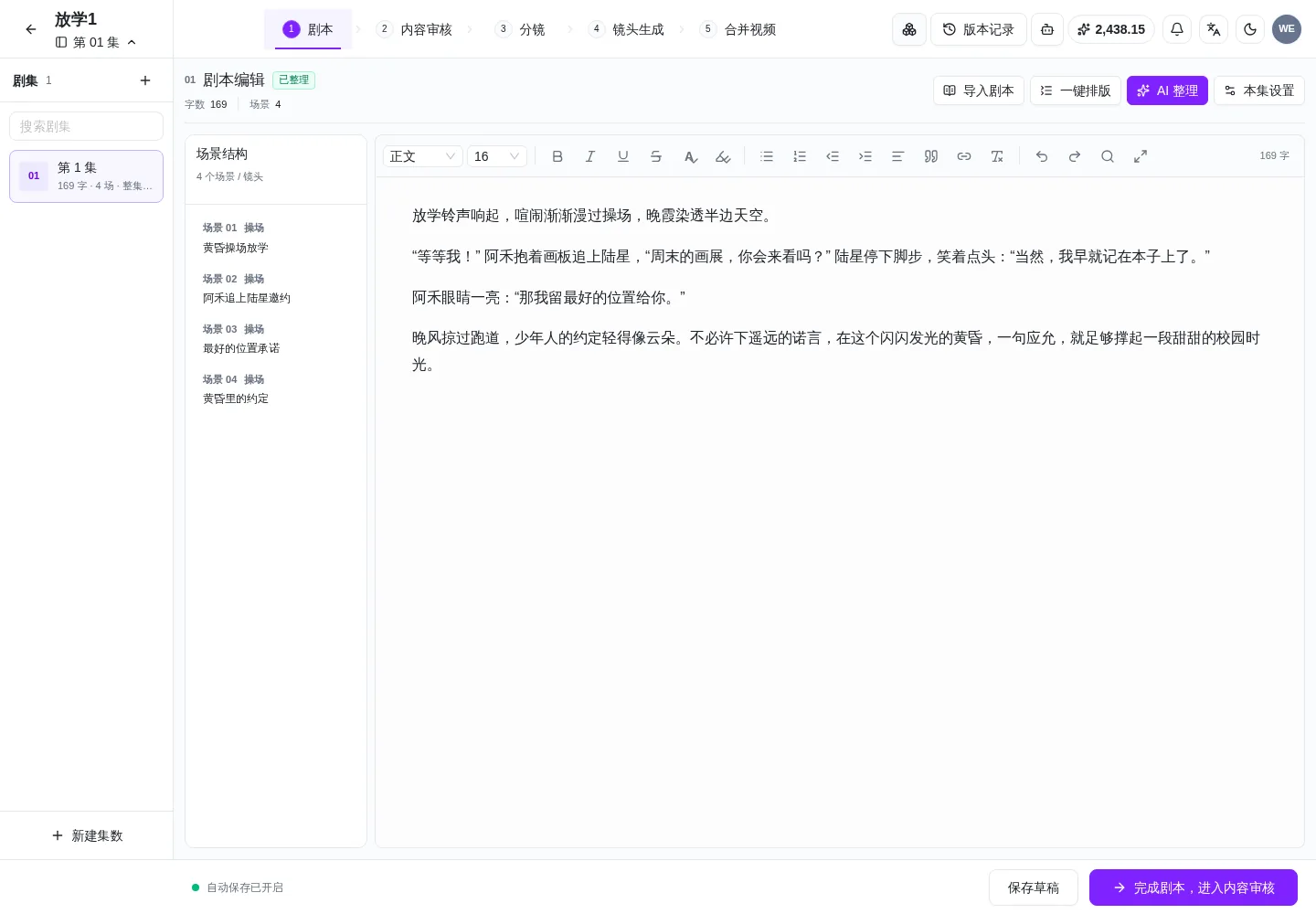
- Episode sidebar: shows each episode's character count, scene count, and overall status, for example “169 characters · 4 scenes · episode complete”.
- New episode (新建集数): continue writing the next episode, reusing the project's characters and visual style.
- Version history (版本记录): save a version before major script or storyboard changes so you can compare and roll back.
- Episode settings (本集设置): apply the same aspect ratio, resolution, model, and narration voice.
04 · Script
Script: import, formatting, and AI structuring
The script stage defines the boundaries of every shot that follows. Write people, places, time, and key actions clearly first, then hand it to AI for structuring.
Import script
Upload a document, or paste a novel or shot outline directly into the script body.
One-click formatting
Normalize paragraphs and dialogue formatting so stray quotation marks and line breaks don't break later splitting.
AI structuring
Automatically extracts the scene structure: scene number, location, and a one-line summary, plus character count and scene count.
Episode settings
Set this episode's aspect ratio, resolution, model, and narration voice.
Save draft
Edits save automatically. When you are ready, click Complete Script, Go to Review (完成剧本,进入内容审核).
What AI structuring does
It cuts continuous prose into shootable scenes and extracts the location, time, and a one-line summary for each, which becomes the basis for splitting shots later. You can still edit scene titles and structure by hand afterward; AI does not overwrite your edits.
- One action per sentence: avoid packing three events into one sentence so shots are easier to split.
- Give dialogue its own paragraph and use quotation marks to separate speakers, so voiceover and subtitles land more accurately.
- Keep scenes concentrated: shots in the same scene can reuse reference images, which lowers cost.
05 · Review
Content Review: splitting and merging shots
This step does not rewrite the content; it splits the script into shots and verifies each shot's facts, boundaries, and dialogue.
- Source text (原文依据): which line of the script this shot corresponds to; confirm nothing was missed or duplicated.
- Shot facts (镜头事实): characters, location, time, and key actions; mistakes here send the visuals off course.
- Shot boundaries (镜头边界): where the shot starts and where it ends.
- Dialogue and narration: dialogue must match the source text, while narration adds information the visuals cannot convey.
- Estimated duration (预估时长): estimated from dialogue length, so the whole episode's duration is roughly known here.
Split Shot (拆分镜头)
Splits one shot into two, each with its own scene, dialogue, and visual prompt. Use it when one line contains two actions, when the shot size needs to change, or when the visuals before and after differ greatly. Shorter shots are also easier to generate successfully.
Merge Next Shot (合并下一镜)
Combines the current shot with the next one, keeping the continuous action and dialogue. Use it when both shots sit in the same scene and the same action line and each is too short; merging keeps the pacing smoother and saves one generation.
This is the stage most worth your time. Cleanly split shots need almost no rework later; shots with vague boundaries usually come out long and messy.
06 · Assets
Project assets: characters, scenes, props, clues
Project assets are the film's asset library. Click Open Project Assets (打开项目资产) at the top; all four asset types are managed in one place.
| Category | What goes here | How it is used in generation |
|---|---|---|
| Characters (角色) | Character profiles, appearance settings, base images, reference candidates, voice | Locks the on-screen appearance and dialogue voice per shot |
| Scenes (场景) | Location, time, environment description, and base image | Locks space and lighting so they stay consistent across shots |
| Props (道具) | Items that are held or shown, including packaging details | Keeps products and key objects from being altered incorrectly by AI |
| Clues (线索) | Plot-critical objects, promises, symbols (for example “the exhibition promise”) | Named in references to keep narrative information coherent |
A few actions on the panel
- Status filter (状态筛选): all statuses / used in this episode / missing reference image / incomplete profile / referenced / not referenced.
- Sorting (排序): default order, incomplete profile first, most referenced, by name.
- Fill Missing Images (一键补图): generates candidate images one by one for characters, scenes, and props that lack a base image; clues are excluded.
- Export project assets (项目资产导出): downloads the full set of base images as an archive for filing or handover.
07 · Character
Character profiles: base images, reference candidates, and voice
Characters are the element that most needs stability in a drama. A character profile has four parts: appearance settings, base image, reference candidates, and voice.
| Field | Purpose | How to use |
|---|---|---|
| Character profile (角色档案) | Name, role, personality, relationships with other characters | Write “a student who chases after Lu Xing with a drawing board in her arms” so the Agent knows how to perform it |
| Base image (基准图) | The character's primary reference image, used by default when generating shots | Use Fill Missing Images to generate one automatically, or upload a more accurate photo |
| Reference candidates (参考图候选) | Multiple candidate images of the same character; compare them and set one as the primary reference | Keep one per angle and per outfit, and pick per shot |
| Voice settings (音色设置) | The voice used for this character's dialogue | Bind a cloned or system voice, or fall back to the narration voice |
| Status (状态) | Confirmed / pending, profile incomplete | Pending characters are flagged in the pre-generation check |
As long as a character is checked in a shot, Reference Image mode uses their base image as the character reference, so it is the same face across shots. When AI Voiceover (AI 配音) is selected on the audio tab, lines are generated in that character's bound voice.
Fill in characters first, then scenes and props, then generate shots. If a character's base image is off, every shot after it drifts.
08 · Shot · Content
Shots · Content: speakers and narration
In the Storyboard stage, expand any shot to see four tabs: Content, Frame, Reference, and Audio. Content determines what this shot says and who says it.
- Shot facts: what happens in this shot; the shared basis for both visuals and dialogue.
- Speaker (说话人): every line must be bound to a character, and voiceover and lip sync follow the speaker.
- Correcting the speaker (纠正说话人): fix it here when the script does not make clear who is talking; after changing dialogue, the voiceover must be regenerated.
- Off-screen voice (画外音·旁白): content that must be heard but not seen; it uses the narration voice and does not take up a character.
- View Source Text (查看原文依据): check against the original script line at any time so edits do not drift from the source.
One line of dialogue binds to exactly one speaker. If two people speak at once, split it into two lines or state “speaking simultaneously” in the frame, otherwise the lip sync will not match.
09 · Shot · Frame
Shots · Frame: prompts and three generation modes
The Frame tab is the core of storyboard editing: prompt, generation mode, storyboard frames, and duration all live here.
- Visual prompt (画面提示词): subject, scene, shot size, composition, and lighting; what this frame looks like.
- Motion prompt (动态提示词): the action process, pacing, and start and end states; how the shot moves.
- Camera movement (镜头运动): camera position movement and speed, such as push in, pull out, pan, truck, and follow.
- Duration (时长): set by dialogue length and pacing; too short truncates the line.
Three video generation modes
| Mode | How it works | Advantages | Trade-offs | Best for |
|---|---|---|---|---|
| Reference Image (参考图) | Locks appearance and space with asset images of characters, scenes, and props | Best cross-shot consistency | Base images must be generated in project assets first | Continuous narrative with the same characters and scenes across shots |
| Storyboard-driven (分镜驱动) | Generates a first frame (optionally a last frame) first, then drives the video | Most controllable composition | One extra image generation and wait per shot | Strict composition requirements needing exact first and last frames |
| Direct Generation (直接生成) | Generates from the text prompt only | Fastest and lowest cost | Consistency depends on the prompt | Empty shots, atmosphere shots, single-shot content |
All three modes can be mixed in one episode: Reference Image for key character shots, Storyboard-driven for essential compositions, Direct Generation for transitional empty shots. The unified model only affects defaults; individual shots can still override it.
10 · AI revision
AI revision and continuity control
When you would rather not edit prompts line by line, describe the change in natural language and AI adjusts the visuals, camera movement, and continuity together.
- One pass: visuals, camera movement, and continuity are adjusted together, with no need to edit three fields separately.
- Example wording: “Change it to a rainy night, push in slowly, and make the shopkeeper more impatient.”
- Visuals only: with dialogue left unchecked, voiceover and subtitles stay untouched, saving one voiceover run.
- Changing dialogue: checking it clears this shot's existing voiceover, and the voiceover must be regenerated.
- Preview before applying: changes are written only after you confirm the diff, which avoids breaking the shot.
Continuity answers “does this shot line up with the previous one”: which side a character stands on, which way they look, what action they start from, and what action they end on. With a single shot you can leave it blank; for multi-shot storytelling, fill in at least blocking, eyeline, and the axis.
11 · Shot · Reference
Shots · Reference: people, scenes, and structure
The Reference tab determines which assets this shot actually uses, and whether a structural reference is reused.
- Characters present (出场角色): check only the people who actually appear; extra checks pull in unrelated characters.
- Scene (所在场景): determines space and lighting; when the scene changes, change the reference with it.
- Props shown (出现道具): items that are held or displayed; checking them keeps packaging and details stable.
- Story clues (剧情线索): promises, keepsakes, symbols, and other narrative information that must echo across shots.
- Generate reference image (生成参考图): composites the checked items into a reference image and flags when References Need Update.
- Structure control (结构控制): enable it when you need to reuse a specific image's composition or shot structure.
When the selections change a lot, References Need Update (引用需更新) appears, meaning the existing reference image no longer matches the current selections; regenerate or update the reference before generating video.
12 · Shot · Audio
Shots · Audio: native audio, AI voiceover, and mute
Each shot independently decides what audio the final cut uses, and nothing is dubbed twice.
| Mode | Effect | Best for |
|---|---|---|
| Native video audio (视频原声) | Keeps the dialogue, ambience, and music generated by the video model | Lip sync and performance generated together, when you want to keep the live feel |
| AI voiceover (AI 配音) | Mutes the source video and generates voiceover with the character's bound voice | Unified voices, replacing lines in post, multiple languages |
| Mute (静音) | Generates a silent shot | Unified post-production music, purely visual storytelling |
Shots with native voiceover do not use the voiceover track, and the final cut keeps the video's original audio track. Only shots whose voiceover was replaced in post appear as voiceover segments during merging.
13 · Generation
Shot generation and “hand off to the Agent”
Each shot is submitted, billed, and retried independently. Merging starts only after every shot in the episode succeeds.
- Pre-generation check (生成前检查): verifies that characters and reference images, scenes and props, and voices are ready, so you do not discover missing assets halfway through.
- Unified model (统一模型): image and video models are set for the whole episode, and individual shots can override them.
- Task map (任务图): shows completed, in-progress, and failed counts.
- Per-shot actions (单镜操作): generate video, regenerate, generate voiceover, switch to AI voiceover.
- Batch voiceover (批量配音): generate voiceover for several shots at once, then review them together.
- Visual Review / Preview and Merge (视觉复盘 / 预览与合并): compare the whole episode side by side and move into merging.
When to use “hand off to the Agent”
- The shot needs multi-asset compositing, for example two specific reference images plus a particular scene.
- It needs repeated conversational trial and error that the per-shot parameters on the Drama page cannot express.
- You have a special creative idea or complex action and want a few versions in the Agent first, then bring one back.
Clicking it opens the Creation Agent with this shot's context; when you are satisfied, return to Drama and continue production. Routine shots do not need this detour; generating straight from the shot card is faster.
14 · Merge
Merging video and the timeline
Once every shot is complete, the project moves to the merging stage. Here you can either stitch a quick preview or do full editing and subtitle work.
Two merge options
- Re-run Quick Merge (重新快速合并): concatenates shots in order with no editing package or subtitle styling, which suits internal pacing checks.
- Re-run Full Compose (重新完整合成): applies timeline edits, transitions, and subtitle styles to produce a deliverable final cut.
Timeline details
- Video track (画面轨): select a clip to adjust its start time, keep-in point, and keep-out point, trimming excess head and tail.
- Intro transition (入场转场): each segment can have a transition type (such as pixel dissolve or push in) and duration; the first shot has no transition.
- Voiceover track (配音轨): shows only voiceover segments replaced in post; they can be muted or locked.
- Subtitle track (字幕轨): edit subtitle text and timing so subtitles do not cover faces.
- Stats (统计): 4/4 final cut, 2/2 voiceover, 3 subtitles, 32 seconds total; confirm at a glance that everything is in place.
15 · Project Agent
Project Agent assistant
Open Project Agent (打开项目 Agent) at the top opens a chat panel inside the project. It understands this project and can directly revise the script, revise storyboards, and regenerate a shot.
How it differs from ordinary chat
- Reads project context (读取项目上下文): knows this episode's script, characters, scenes, props, clues, and existing storyboards.
- @ references assets (@ 引用资产): for example “@Ahe says to @Lu Xing, using @Ahe-Chases-Lu-Xing Invitation · Ahe's voice”.
- Produces storyboards directly (直接产出分镜): regenerates storyboard images or talking-head clips from your revision and writes them back into the project.
- Collapsible (可收起): stays out of the way and can be reopened any time to keep chatting.
How to use it
Example prompt: “In shot 2, Ahe needs to have his back to the camera, then speak to Lu Xing. Please revise the prompt and regenerate the storyboard.” The Agent returns a new storyboard and explains what it changed; keep adding requests until you are satisfied, then return to the Storyboard or Shot Generation stage.
The Project Agent suits “revise as you chat”; bulk generation still happens on the Shot Generation page. After changing dialogue, remember to regenerate the voiceover for that shot.
16 · Case
Case study: Ahe and Lu Xing
Take the campus drama “The Best Seat” in the project “After School 1”: first the original script, then the 32-second final cut it composes into.
Original script · 169 characters · 4 scenes
放学铃声响起,喧闹渐渐漫过操场,晚霞染透半边天。
“等等我!” 阿禾抱着画板追上陆星,“周末的画展,你会来看吗?” 陆星停下脚步,笑着点头:“当然,我早就记在本子上了。”
阿禾眼睛一亮:“那我留最好的位置给你。”
晚风掠过跑道,少年人的约定轻得像云朵。不必许下遥远的诺言,在这个闪闪发光的黄昏,一句应允,就足够撑起一段甜甜的校园时光。
The end-of-school bell rings; the noise gradually spills across the playground, and the sunset dyes half the sky.
“Wait for me!” Ahe chases after Lu Xing with a drawing board in her arms. “Will you come to the exhibition this weekend?” Lu Xing stops, smiles, and nods: “Of course. I already wrote it in my notebook.”
Ahe's eyes light up: “Then I'll save the best seat for you.”
The evening breeze sweeps over the track, and the promise between the two teenagers is as light as a cloud. There is no need for far-off vows; on this glittering dusk, a single yes is enough to hold up a sweet stretch of campus time.
| Item | Value | Notes |
|---|---|---|
| Script | 169 characters · 4 scenes | Dusk playground after school → chase and invitation → saving a seat → dusk promise |
| Shots | 4 shots | Wide establishing shot, two-person follow shot, static close-up, closing empty shot |
| Assets | 2 characters · 1 scene · 2 props · 2 clues | Ahe, Lu Xing; playground; drawing board, notebook; the exhibition promise |
| Duration | About 32 seconds | 5.17 / 9.42 / 5.17 / 12.25 seconds |
| Voiceover | 2 / 2 complete | Key dialogue uses native voiceover, narration uses a unified voice |
| Credits | About 71.7 actual | Billed per shot; failed shots are not counted in the final cut |
The key to this film is shot boundaries: shot 2 keeps “catching up” and “the invitation” in the same follow shot, avoiding a cut into two fragments; shot 3 uses a static close-up to emphasize the line “the best seat”; shot 4 holds a 12-second empty shot to close, letting the emotion land.
Final cut · 32 seconds · 16:9
Full four-shot compose: voiceover 2/2, 3 subtitles, with transitions and subtitle styles applied.
17 · FAQ
FAQ
The questions people run into most often when making their first drama.
What is the difference between Drama, Digital Human, and the Creation Agent?
Digital Human is a single-take talking-head tool, and the Creation Agent focuses on conversational asset production. Drama is a project-based series pipeline: it works in episodes—script first, then shot-by-shot review, then storyboard splitting, then per-shot generation, and finally a timeline merge into a complete episode.
How do I choose between built-in styles and a custom style?
Built-in styles are 10 preset prompts (Photorealistic, Japanese Anime, Guofeng Xianxia, Chibi 3D, Cel-shaded 3D, Nostalgic Memory, Horror Suspense, Cyberpunk, Clay Toy, 1980s). Pick one to keep the whole film visually consistent. Choose a custom style when you already have a clear art direction and want to write the prompt yourself. The two are mutually exclusive and one is required.
What is the difference between base images and reference candidates in project assets?
A base image is the primary reference for that character, scene, or prop, and is used by default when generating shots. Reference candidates are alternative images of the same subject that you can compare and switch into the primary slot. A character can also have a bound voice, used for that character's dialogue.
When should I use Split Shot versus Merge Next Shot?
Split when a single shot contains two distinct actions, or two lines that need different shot sizes. Merge next when two adjacent shots sit in the same scene and the same action line and are both too short, so the final cut doesn't fragment.
How do I choose among the three video generation modes?
For the same character and scene that must stay consistent across shots, choose Reference Image (recommended). When composition must be exact and you need to lock the first frame or even the last frame, choose Storyboard-driven. For empty shots, atmosphere shots, and single-shot content, choose Direct Generation—it is the fastest and the cheapest.
Does AI revision change the dialogue?
By default it only changes the visuals, camera movement, and continuity. Dialogue changes only when Allow dialogue/narration changes at the same time is checked, and changing dialogue clears that shot's existing voiceover, so the voiceover must be regenerated. A before/after diff is shown before you apply.
When should I hand a shot off to the Creation Agent?
Use Hand Off to Creation Agent in the shot menu when you need multi-asset compositing, repeated conversational trial and error, or special creative treatment for that shot (a specific reference-image combination, complex action, unusual composition). Polish it there and return to Drama once you are satisfied.
What if shot generation fails?
Each shot is generated independently, so a failure only affects that shot and can be retried on its own; completed shots are not charged again. Run Pre-generation Check first—it verifies that characters and reference images, scenes and props, and voices are ready.
How do I choose between Quick Merge and Full Compose?
Quick Merge concatenates shots in order: fast, with no editing package or subtitle styling. Full Compose applies timeline edits, transitions, and subtitle styles. Use Quick Merge to check pacing internally and Full Compose for delivery.
Is the Project Agent the same as the Creation Agent?
They are different entry points. The Creation Agent is a standalone studio. The Project Agent lives inside a Drama project and can read that project's characters, scenes, props, and clues plus the current episode's storyboard, which makes it suitable for directly revising the script or storyboard or regenerating a shot, with the changes staying in the project.