01 · Overview
Understanding digital humans
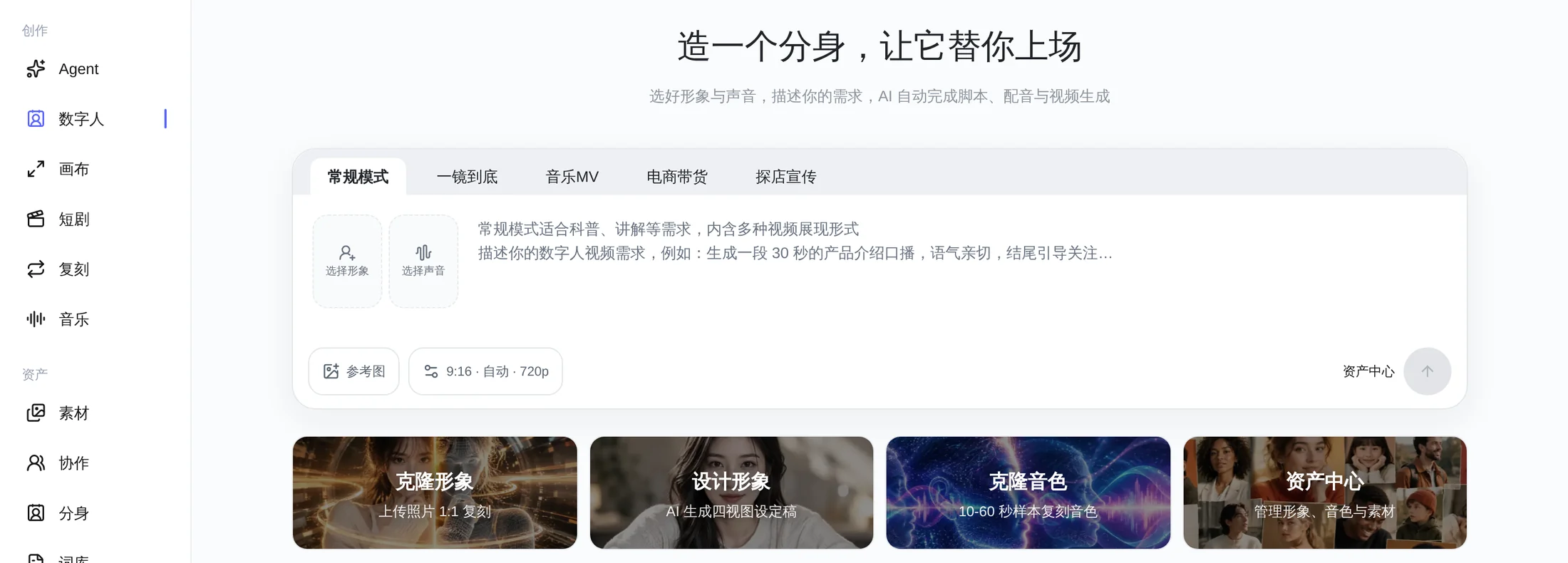
A digital human is not just a photo that talks. It links avatar, voice, script, and shot planning into one production line: you choose an avatar and a voice, describe what the video should say, and the AI plans the shots, generates the voiceover and visuals, then stitches everything into a downloadable final video.
Quick answer
- Digital humans support five modes: Standard, One-Take, Music MV, E-commerce Selling, and Store Visit.
- Standard mode runs 30–150 seconds; One-Take 20–60 seconds; Music MV follows the song; E-commerce Selling and Store Visit 20–80 seconds.
- Cloned avatars take 1–3 clear frontal portraits; designed avatars create a new IP from text and presets.
- Voice cloning needs 10–60 seconds of clear speech in wav / mp3 / m4a, under 10MB.
- Full flow: choose avatar and voice → describe the brief → confirm the shot plan → generate → preview and download.
How a video is made
Choose an avatar
Pick from My Favorites (我的收藏), My Avatars (我的形象), or Public Avatars (公共形象); for an exclusive avatar, clone or design one in Asset Center (资产中心) first.
Choose a voice
Filter system voices by gender, age, language, and scenario, or use your own cloned voice.
Describe the brief
State the topic, audience, structure, duration, tone, and closing call to action; when you need a specific visual, reference it as @Image 1.
Confirm the plan
The AI first proposes a shot script and lines. Confirm to start generation, or revise the copy conversationally.
Preview and download
Preview and download the final video; retry a single shot you are unhappy with, or regenerate the whole video.
Digital human creation is a two-stage flow: plan first, generate second. The planning stage does not consume video generation time, so you can settle the structure before production starts.
02 · Audience
Which industries and users it suits
Wherever you need a consistent on-camera presence, high-volume output, and low-cost updates, a digital human has a role.
Industry scenarios
- Knowledge and education: course chapters, concept breakdowns, policy explainers, corporate training.
- E-commerce retail and brand marketing: product benefits, campaigns, listing-page videos, paid social placements.
- Local life and store visits: restaurants, hotels and homestays, cultural attractions, in-store group deals.
- Healthcare and financial services: public education, product explainers, compliant and consistent messaging.
- Corporate and government communications: brand stories, recruiting presentations, notices, multilingual versions.
- Creators and MCNs: daily voiceover content, account matrices, consistent IP avatars, batch localization.
Typical users
- Founders and executives who prefer not to appear: keep a professional presence with a digital twin and cut shooting time.
- Instructors, consultants, and knowledge creators: quickly rewrite one set of content into multiple short videos.
- E-commerce operators and livestream teams: produce selling assets for different products in batches and test selling points.
- Store owners and local reviewers: introduce a venue with scene images plus a digital human, without repeated on-site shoots.
- Marketing and brand teams: unify avatar, voice, and messaging to reduce outsourcing coordination costs.
- Cross-border and multilingual teams: pair one avatar with voices in different languages to produce overseas versions quickly.
Three questions to ask before choosing
Should it look like me?
To keep real facial features, choose Cloned Avatar (克隆形象); for a brand IP or anonymity, choose Designed Avatar (设计形象).
One video or many?
For a single voiceover, One-Take is faster; for multiple scenes and layers of information, use Standard mode.
Do I have ready assets?
A song for an MV; product images for selling; store scene images for a store visit. The more specific the assets, the closer the result to your intent.
03 · Modes
Five creation modes
One home page, with the mode switched by content goal. The mode decides how you tell the story, not whether you can tell it.
All five modes support 9:16 and 16:9 frames, defaulting to 9:16, with 480p / 720p / 1080p resolution, defaulting to 720p. Except for MV, every mode lets you set a target duration or leave it to the AI.
Standard
Recommended for beginnersFor explainers, lessons, and product intros that need several shots to make one point clear, with multiple video presentation styles built in.
- Target duration 30 / 60 / 90 / 120 / 150s
- Auto duration About 20–55s
- Shot limit Up to 24 shots
The AI first breaks down the brief and plans shots for hook, setup, point, demo, evidence, selling point, and call to action, then picks a format per shot: digital human, long digital-human take, text-to-video, image-to-video, web animation, or animated graphics and text.
- Digital human shot: 5–15 seconds each, carrying on-camera voiceover and opinions.
- Long digital-human take: 10–40 seconds each, for full chapters; up to 3 per video.
- Web animation: 8–60 seconds each, for visualizing data, steps, comparisons, and key quotes.
- Animated graphics and text: 4–8 seconds each, image carousels that carry mood or case examples.
One-Take
Continuous voiceoverGenerates one continuous, complete video that feels like a single take, suited to solo voiceover and opinion pieces.
- Target duration 20 / 40 / 60s
- Auto duration About 8–28s
- Shot structure 5–15s segments stitched continuously
One-Take emphasizes narrative continuity: the person, scene, and tone stay consistent, so viewers are not pulled out of the story. When the automatic duration exceeds 15 seconds, the AI splits it into 2–3 continuous generations and stitches them into one complete video.
- Best for single voiceovers, opinion pieces, vlog-style explainers, and event speeches.
- Simple structure, faster generation, better character consistency.
- Not suitable for heavy charts, product close-ups, or frequent scene changes.
Music MV
Duration follows the songUpload a song and generate a complete music video segment in one click. Lyrics follow the timeline and are not burned into the picture.
- Total duration Follows song length
- Cast Avatar 1 required, avatar 2 optional
- Shot limit Up to 60 shots
MV mode needs no target duration, because the whole song is the timeline. The AI arranges singing shots, atmospheric empty shots, and long close-ups by lyrics and sections. A second avatar can be used for duets, choruses, or a second character.
- Singing shot: 5–15 seconds each, the main shot type, with the avatar singing on camera.
- Long close-up: 5–20 seconds each, up to 3 per song, used for emphasis.
- Atmospheric empty shot: 5–15 seconds each, carrying transitions, emotion, and visual breathing room.
- Lyrics display along the timeline in the player and are not burned into the picture.
E-commerce Selling
Product-image drivenGenerates vertical selling videos around product benefits and promotions, suited to listing pages, paid social, and livestream clips.
- Target duration 20 / 40 / 60 / 80s
- Scene images Up to 2
- Product images 1 (front / side / back)
E-commerce Selling structures content as pain point, benefit, offer, and call to action, with shots focused on digital-human voiceover and product display. When uploading product images you can label them front, side, and back; scene images add usage context or livestream atmosphere.
- Recommended structure: 3-second hook → core benefit → usage scene → price offer → order prompt.
- Reference scenes and products as @Image 1 and @Image 2 in the brief to reduce ambiguity.
- Choose 9:16 for Douyin or WeChat Channels; switch to 16:9 for horizontal listing pages.
- Enable Burn-in Subtitles (烧录字幕) to bake subtitles into the video, which suits ad delivery.
Store Visit
Local lifeUses scene images to connect the in-store experience into one route, suited to restaurants, travel, retail stores, and local group deals.
- Target duration 20 / 40 / 60 / 80s
- Scene images Up to 3
- Structure Customer flow and scene intros
Store Visit is built around a person walking through a scene. Upload 3 scene images in the order storefront → interior → signature product or service → price or address, then describe the route with @Image 1, @Image 2, and @Image 3.
- Recommended structure: storefront hook → interior atmosphere → signature experience → price, address, or group-deal prompt.
- Route example: the person introduces at the @Image 1 entrance, walks to the @Image 3 front desk, and finally presents the signature dish in @Image 2.
- Add scene notes for each image to help generate more fitting prompts.
- Choose 9:16 for local-life platforms, which suits group deals and city recommendations.
The mode only determines how content is organized; it does not change the avatar or voice. When you switch modes, the selected avatar, voice, and reference images are kept where possible, but the duration tier is adjusted automatically for the mode.
04 · Duration & Settings
Supported durations and generation settings
Choose the mode first, then the duration tier and frame determine the output format.
| Mode | Target duration | Auto duration | Per-shot structure and limits |
|---|---|---|---|
| Standard | 30 / 60 / 90 / 120 / 150 s | About 20–55 s | Digital human 5–15s; long take 10–40s; web animation 8–60s; graphics 4–8s; up to 24 shots |
| One-Take | 20 / 40 / 60 s | About 8–28 s | 5–15s each; over 15 seconds it splits into 2–3 continuous generations |
| Music MV | Follows song length | Not required | Singing 5–15s; long take 5–20s; empty shot 5–15s; up to 60 shots |
| E-commerce Selling | 20 / 40 / 60 / 80 s | About 20–55 s | Mainly digital-human voiceover and product display, organized in 5–15s shots |
| Store Visit | 20 / 40 / 60 / 80 s | About 20–55 s | Mainly customer flow and scene intros, organized in 5–15s shots |
Auto duration is decided by the AI based on how much information the brief contains; the final video may deviate slightly because of per-shot trimming, voiceover length, and stitching. This is normal.
05 · Avatar
Cloned avatars and designed avatars
The avatar decides who speaks on camera. Choose a path, then start creating.
Path A: Cloned avatar, a 1:1 replica of a real person
Upload 1–3 clear frontal portraits. The AI preserves facial features, face shape, skin tone, and overall character, and generates a 16:9 four-view reference sheet (front / side / back / facial close-up) as the avatar reference for later videos.
- Suits founders, instructors, hosts, and consultants who need to look like themselves.
- Gender, age, height, and weight are required; exact values are written into the prompt as-is.
- Expression, hairstyle, outfit, and pose are adjustable; the face always follows the reference portraits.
- Usually takes 1–3 minutes. You can leave the page after submitting, and the avatar is added to My Avatars (我的形象) automatically when done.
Path B: Designed avatar, a new IP created from text
No real photo needed. Choose gender, nationality style, face, expression, hairstyle, outfit, and pose, plus age, height, and weight, to generate a brand-new digital human. You can also upload outfit or hairstyle references and switch to image-to-image mode.
- Suits brand IPs, virtual hosts, anonymous voiceovers, and character series.
- Gender, nationality style, age, height, and weight are required.
- Optional: 1 outfit reference, 1 hairstyle reference, and an advanced description.
- Output is also a 16:9 four-view reference sheet, saved to My Avatars (我的形象).
What the four-view sheet is
The four views include a full-body front, side, and back plus a facial close-up. It is not the final video image but reference material the model uses to understand the person's appearance. During video generation, the frontal avatar image and the four views are used together as avatar references to keep the face, hairstyle, and body consistent.
For a cloned avatar, facial features take priority over text instructions; if the photos conflict with the body metrics you entered, the final video follows the photos. To adjust outfit or hairstyle, use avatar instructions or regenerate.
Public avatars and review
Private avatars can be submitted for public listing with up to 3 category tags (such as marketing and selling, knowledge explainers, business and office, healthcare, financial services, and offline retail). Once approved, the avatar enters the public avatar library; avatars that fail review remain fully usable as private avatars.
06 · Voice
System voices and voice cloning
The voice decides who it sounds like. Start with system voices, then build recognition with a cloned voice.
System voices
Hundreds of built-in voices can be filtered by gender, age, language, and use case. Every voice can be previewed, frequently used voices can be favorited, and you can select one in a click while creating.
- Use cases: knowledge explainers, late-night radio, emotional companionship, business presentations, e-commerce livestreams, anime dubbing, sports commentary, and customer service.
- Languages: Chinese, English, and mixed Chinese–English.
- Advantage: no sample needed and ready to use; suits batch testing and multi-character content.
Voice cloning (replicating a voice)
Upload or record a 10–60 second clear speech sample to generate an exclusive voice. After cloning, you can run an A/B comparison in the dialog: A is the original sample, and B is the cloned voice reading the same script.
- Sample requirements: wav / mp3 / m4a, ≤10MB; quiet environment, natural pacing, single speaker.
- Cloning flow: validate the sample → bind the Qwen synthesis model → clone → add to My Voices (我的音色).
- Limit: up to 10 cloned voices per user.
- Where it works: digital human voiceover, short drama dubbing, and music features.
Original sample
About 19.8 s · Original recordingThe original recording uploaded for cloning, used to extract timbre, pitch, and speaking habits.
Cloned voice preview
About 10.3 s · wen3 voiceA sample script synthesized with the wen3 cloned voice; compare it mainly for timbre and tone.
The original sample is the reference used for cloning, while the preview synthesizes a different script with the same voice, so the two are not identical in content; when comparing, focus on timbre, pitch, pace, and pause habits. Before production use, preview once more with your own script.
Only use voice samples of yourself or samples you have explicit permission to use. Do not clone public figures, other people's voices, or unauthorized film and character voices for public release.
07 · Workflow
From brief to final video
Writing a good brief matters more than tuning settings. Here is a reusable approach.
Writing the brief: cover five things
Topic and audience
What the video covers and who it is for. The audience decides the tone and information density.
Structure and key points
Opening hook, 3 core points, closing call to action. The more specific the points, the less the shots drift.
Duration and frame
The placement platform decides 9:16 or 16:9; the amount of information decides 30s or 90s.
Visuals and assets
Upload images when you need specific scenes and reference them as @Image 1; describe shot size, lighting, and style.
Call to action
Follow, like, order, visit, or direct message. Without a closing prompt, conversion drops noticeably.
A brief template you can reuse as-is
Topic: explain to someone drinking Chinese tea for the first time why "a single leaf has lasted five thousand years"
Audience: urban office workers aged 25–40 who are curious about tea but don't understand it
Structure: open with a counterintuitive question to grab attention → cover 3 key historical turning points → land on "how to drink your first cup today"
Duration: about 60 seconds, 9:16 vertical, 720p
Tone: warm and story-driven, first-person voiceover
Visuals: person-led, intercut with animated graphics and text for tea leaves, tea liquor, and classical painting textures
Ending: ask viewers to follow, and mention in the comments how to get the beginner tea list
Subtitles: clean white text with key words highlighted
Planning stage: review the shots before generating
After you submit the brief, the AI first enters Planning (规划中) and generates a shot script and lines, after which the status becomes Pending Confirmation (待确认方案). At this point you can review the lines, visual descriptions, camera moves, durations, and subtitle style shot by shot; you can revise the copy conversationally, edit in the shot details, or regenerate only a single shot.
Generation stage: you can leave the page
Tasks run in the background and are not interrupted if you leave the page. When finished, the video appears automatically in the workbench and in Recent Creations (最近创作). If one segment fails, retry only that segment; if the overall result is unsatisfactory, regenerate the final video.
Recent Creations keeps the Planning, Pending Confirmation, Generating, Completed, and Failed states. Failed tasks show the reason and a retry entry, so you do not need to re-enter the whole brief.
08 · Demos
Demo videos
Final videos from real creation records, demonstrating Standard mode and E-commerce Selling.
Standard mode · 30-second vertical
"Understanding Chinese History in Thirty Seconds" · 9:16 · 720p · 4 shots
E-commerce Selling · 26-second vertical
"Calamine Soap Special Offer ¥1.9" · 9:16 · 720p · 3 shots · high-energy bouncing subtitles
09 · FAQ
Frequently asked questions
The questions that come up most often on first use.
Why doesn't the final video length exactly match the setting?
Videos are assembled from multiple 5–15 second shots, and voiceover length, per-shot trimming, and local animation all affect the final duration; in Auto mode the AI plans by information volume, so small deviations are expected. For an MV, the total duration is determined entirely by the song and needs no setting.
Is One-Take really generated in a single pass?
It looks like one continuous video. Under the hood it generates 5–15 second segments continuously and stitches them automatically, keeping the person, scene, and tone consistent. When the automatic duration exceeds 15 seconds, it splits into 2–3 continuous generations.
What if the digital human doesn't look enough like me?
Start with 1–3 frontal portraits that are clear, unobstructed, and evenly lit; avoid sunglasses, profile angles, heavy filters, and group photos. A cloned avatar follows the facial features and face shape of the reference portraits, so swapping in a clearer photo is usually more effective than adding more text.
Why don't the clothes in the video match the avatar image?
Check whether Clothing Consistency (服饰一致性) is enabled. When it is on, the digital human wears exactly what the avatar image shows; when it is off, the AI designs outfits freely per scene while keeping the face consistent. Keep it on for brand uniforms and professional attire.
How long a sample does voice cloning need?
We recommend 10–60 seconds of clear speech in wav / mp3 / m4a, no larger than 10MB. A quiet environment, a single speaker, natural pacing, and no background music give the best results. Once cloning is done, you can run an A/B comparison.
Can I request to publish an avatar? Can I still use it if review fails?
Yes. Add up to 3 category tags to the avatar and submit it for review; once approved it enters the public avatar library. Avatars that fail review show the reason but remain fully usable as private avatars.
What if the video has no audio or the lip sync is off?
First confirm that a voice is selected and previews normally, then check whether that shot generated successfully. If a single segment failed, retry it in the shot details instead of redoing the whole video; if the entire result is broken, regenerate the final video.
Can the generated videos be used commercially?
Make sure you hold the appropriate rights to the avatar, voice, images, music, and script, and comply with platform rules and the law. Do not clone other people's avatars or voices without authorization, and do not use generated content to mislead others. The site's terms of service and local law govern the specifics.
10 · Get Started
Start now: the shortest path to your first video
For your first try, use Standard mode + Auto duration + 9:16 + 720p.
Prepare an avatar
Picking a public avatar is fastest; to use yourself, clone an avatar with 1–3 frontal photos.
Pick a voice
Preview system voices to find one that matches the content; clone a voice only when you need recognition.
Write a 60-second brief
Use the template on this page: topic, audience, structure, duration, visuals, closing prompt.
Confirm the plan and generate
Check the shots and lines, then confirm to start generation; you can leave the page meanwhile.
Preview, download, and review
Check pacing and subtitles, note which shot types worked, and reuse the brief structure next time.