01 · Overview
Lay your assets out on one infinite canvas
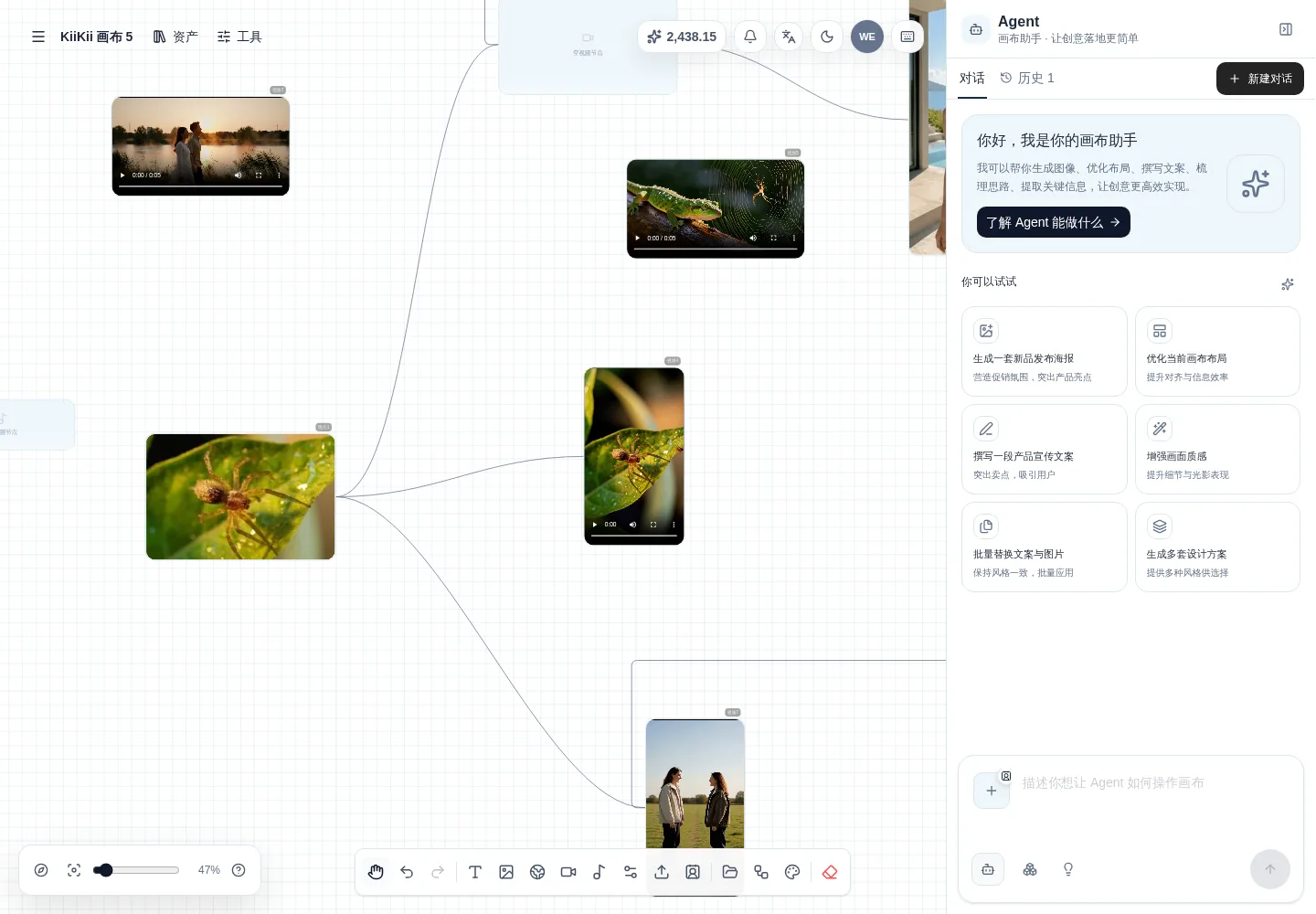
The canvas is a workbench you can zoom infinitely and arrange freely. Images, videos, audio, and text are all nodes that can be compared side by side, referenced by each other, and used to generate new content directly with the Canvas Assistant (画布助手).
Quick answer
- Node types: text, image, panorama, video, audio, generation config, and avatar.
- Top bar: project switcher, assets, tools, and shortcuts; the bottom holds the node toolbar and zoom controls.
- The Canvas Assistant on the right reads the current canvas and the selected assets, and writes results back as new nodes.
- Select a node to inspect its generation parameters or keep generating from it.
- Only generation consumes credits; moving, connecting, and arranging nodes is free.
02 · Layout
Interface structure
The canvas interface has four parts: the project bar at the top, the asset drawer on the left, the canvas in the middle, and the assistant panel on the right.
- Top project bar: switch or rename the project; assets, tools, and shortcuts sit on the right.
- Left asset drawer: assets on the current canvas, prompts, and the word library, filterable by image or video.
- Center canvas: infinite; scroll to zoom, drag to pan, and place nodes anywhere.
- Right assistant: conversation, history, and new conversations; results come straight back to the canvas.
03 · Nodes
Nodes and canvas operations
Everything is a node. Once you understand node types, you understand the canvas.
| Node | Purpose | Common sources |
|---|---|---|
| Text | Write prompts, scripts, and notes; usable as generation input | Added manually |
| Image | Reference images, storyboards, final images | Upload, generate, reference |
| Panorama | 360° scenes and spatial references | Upload, generate |
| Video | Generated shots and finished clips | Generate, upload |
| Audio | Voiceover, music, sound effects | Upload, generate |
| Generation config | Freeze parameters such as model, aspect ratio, and duration into a node | Added manually |
| Avatar | Bring in a digital human for talking-head or on-camera content | Avatar library |
- Marquee selection: select several nodes at once and move or delete them in bulk.
- Undo / redo: step back from mistakes; rearranging never loses content.
- Zoom and pan: the current zoom shows at the bottom—zoom out for the whole picture, in for details.
- Auto layout: when nodes get messy, rearrange them by type to restore readability quickly.
04 · Assets
Assets and the asset library
Assets (资产) on the left keeps everything on the current canvas in one place, so you don't have to hunt around the canvas.
- Current: all nodes on this canvas, grouped and counted by image and video.
- Assets: your account asset library, so the same reference image can be reused across projects.
- Prompts / Word library: save templates and consistent style terminology.
- Locate: jump to the matching node on a long canvas.
05 · Tools
Tool panel: locate, organize, and export
Once nodes pile up, the tool panel becomes the entry point for navigation and batch operations.
- Click a name to locate: find a node by name and jump to where it sits on the canvas.
- Workflows: chain a series of nodes in order into a process you can run again.
- Organize / auto layout: rearrange nodes by type and generation order.
- Export: export the canvas content, or package and download the selected nodes.
06 · Assistant
Canvas Assistant: entry points and structure
The Canvas Assistant sits on the right. It is not a plain chat window: it reads the whole canvas and writes results back onto it.
- Chat: the current session; messages carry result actions such as Locate video and View full size.
- History: canvas conversations listed by time; switch between them or manage several at once.
- New chat: start a separate topic; old conversations stay in history.
- Context: the assistant knows which nodes are on the canvas and which asset you currently have selected.
- Input box: describe what you need in natural language; no parameters to memorize. To name an asset, use @ or select it first.
One project can have multiple conversations. Keep them apart by topic—one for the sunrise series, one for the character series—so the contexts don't interfere.
07 · Assistant usage
Canvas Assistant: how to use it
The assistant handles three typical kinds of request: generating from scratch, generating from the selected asset, and adding more rounds.
Generate from scratch
Describe the shot directly, for example “a romantic sunrise scene, 5 seconds”. The assistant creates a task node and produces a video node when it finishes.
Build on the selected asset
Select an image first, then say “the animal in the image walks on the beach and sees a crab, 5-second video”; the assistant uses that image as reference.
Add more rounds
Keep going in the same conversation with “the character dances here” or “observe the ants in the forest”; the assistant carries over the scene and style from the previous round.
| What you will see | What it means | What you can do |
|---|---|---|
| “Background task completed; results synced to the canvas” | The task succeeded and the results became new nodes | Click Locate video to jump there, or View full size to preview |
| “1 video generated” | Comes with the output name, for example “Man and woman walking side by side by the river (5s)” | Go back to the canvas to reference or download it |
| “Task cancelled” | The task was stopped and produced no result | Rewrite the request and generate again |
| “Got it—I will work from the currently selected asset” | The assistant has identified the node you selected | Keep adding shot or motion requirements |
Tips for writing requests
- Start with the subject, then the scene, then the shot and lighting—for example, “a woman walking on a riverside path, side tracking shot, warm golden backlight”.
- Write the duration as “5 seconds” and the aspect ratio as “9:16” or “16:9”; there is no need to spell out parameters.
- To build on the previous round, say “this scene” or “that image from before” instead of describing it again.
08 · Node panel
Selected nodes and in-node generation
Besides working in the assistant chat, you can select a node and generate right on it.
- Add reference image: use an existing canvas asset or a locally uploaded image as the reference.
- Model and aspect ratio: chosen automatically by default; you can also set them manually.
- Generate: results land in a new adjacent node and never overwrite the original image.
- Selection state: the selected node is what the assistant means by “this image” or “this scene”.
In-node generation is best for “one more version of this image”; when you need to combine several assets or revise continuously, the Canvas Assistant on the right is easier.
09 · Case · image to video
Case study 1: turning one image into a video
This is the most common use of the canvas: put a reference image on the canvas, then turn it into a 5-second video with one prompt.
Step 1: Add the reference image
Upload an animal photo and an “Image 1” node appears on the canvas; the image keeps its original aspect ratio and you can open it full size at any time.
Step 2: Select the image and write a prompt
Select “Image 1” and enter the description below in the assistant on the right, emphasizing “keep the animal's appearance in the reference image consistent”.
Step 3: Generate and catch the result
The assistant creates a 5-second video task; when it finishes, a new “beach walk meets a crab video (5s)” node appears on the canvas.
Step 4: Review and continue
Click Locate video to jump there and View full size to preview; if you are not happy, keep chatting to add requirements and generate another version.
The prompt actually used in the case
“Keep the subject's appearance, coat color, body shape, and features exactly consistent with the reference image. This animal walks slowly along the wet beach by the sea, fine soft sand underfoot, gentle waves lapping the shore with white foam. Along the way it lowers its head and spots a small crab scuttling sideways across the sand; curious, it stops and leans in to observe, and the crab raises its claws to meet its gaze. A medium tracking shot follows the walk, then slowly pushes in on the moment of encounter. Natural daylight, a fresh and realistic coastal atmosphere, fluid and lively motion, presenting the small sequence of walking, discovering, and exchanging glances within 5 seconds.”
Generated result · 5 seconds
The same reference image plus the prompt above produces a complete “walk → discover → exchange glances” mini-story.
Three things raise the success rate the most: the subject must match the reference image, the action should break into steps, and the shot should say how the camera moves. Writing only “an animal at the beach” usually gives a very vague result.
10 · Case · multi image
Case study 2: combining two images into one shot
Put two reference images on the same canvas and you can bring them into a single shot.
The prompt only needs one sentence
“Image 1 Image 2 playing together on the grass”—write both numbers into the request and the assistant uses both images as references so they appear in the same video.
For more control, add motion and camera: “Image 1 and Image 2 chase and play on the grass, medium tracking shot, afternoon natural light, 5 seconds”.
Generated result · two images in one frame
Image 1 and Image 2 as simultaneous references produce a 5-second video with both in frame.
With multiple references, the closer the two images are in light direction and subject scale, the more natural the composite. If they differ a lot, unify lighting and scene in the prompt first.
11 · Workflow
Three common workflows
The value of the canvas is orchestration. These three flows cover most use cases.
1. Image to video
Place or generate a main image → select it and write a prompt → generate a 5-second clip → click Locate video to review → move on to the next shot.
2. Talking-head video
Place a digital human as an avatar node on the canvas → pair it with an audio node → generate the talking-head video; good for producing many pieces with the same person in bulk.
3. Multi-shot editing
Compare several video nodes side by side and keep the best ones → use auto layout to tidy the order → after exporting, combine them into a finished piece with an editor or short drama.
Turning a generation config into a node and reusing it keeps model, aspect ratio, and duration consistent across a batch of assets, so the style does not jump.
12 · FAQ
Frequently asked questions
The questions people hit most often the first time they use the canvas.
How is the canvas different from the Creation Agent?
The Creation Agent is linear conversation: one question, one answer, with results arranged in time order. The canvas is spatial: images, videos, audio, and text all sit on the same canvas as nodes, and you can reference, combine, and compare them again and again—better for projects that need to orchestrate many assets.
Will the Canvas Assistant delete or change my nodes automatically?
No. The assistant only adds task nodes and result nodes; existing nodes have to be deleted or moved by you. When a generation task is cancelled, no new node is produced and no credits are charged.
How does the assistant know which image I mean?
Select a node on the canvas first, then ask (for example, “the character dances here”) and the assistant uses the currently selected asset as reference; you can also type @ in the input box to name an asset on the canvas. With nothing selected, it relies on the conversation context.
Do nodes consume credits?
Only generation consumes credits; uploading, moving, connecting, and arranging cost nothing. Generation tasks run in the background and fill in the matching node when they finish.
What if there are too many nodes to find one?
Open the Tools (工具) panel: it lists every node by name and supports click-to-locate. You can also use Organize / auto layout to rearrange nodes by type, then combine zoom and marquee selection for batch operations.
Can I export works from the canvas?
A single node can be previewed, downloaded, or referenced into other features; the whole canvas can be exported through Export in the tool panel. When you need a finished cut, download the video nodes first and then process them with an editor or short drama.